
Remote Replica
The Remote Replica feature allows you to replicate—or clone—your Fresh Start Desktop onto another server, usually in a separate location. Once configured, any modifications to your machine are automatically and quietly mirrored in the background to the replica, with no further intervention needed from you.
This is an incredibly handy tool that can be employed in several ways; two prime examples are detailed below.
Please note: at present, Remote Replica is only compatible with Fresh Start machines, but it can also be leveraged within DaDesktop for work (DD4W).
First off: Clone your desktop by creating a Remote Replica on a server in a different data centre
Think of it as a safety net: you might want to create a Remote Replica of your desktop on a server in another data centre, just in case the primary server becomes inaccessible for any reason. If that happens, you can simply switch to the replica copy and carry on exactly where you left off.
Initially, our Fresh Start machine is housed in the UK Data Center—for instance, bd3uk

Pick the data centre you'd like to use for the Remote Replica—ideally one different from your current machine. You might opt for a data centre in Greece, or go for a completely different country.

The Remote Replica desktop is now being set up. How long this takes depends on the distance of the replica’s location and the size of your desktop. You can keep using your original machine in the meantime if needed.
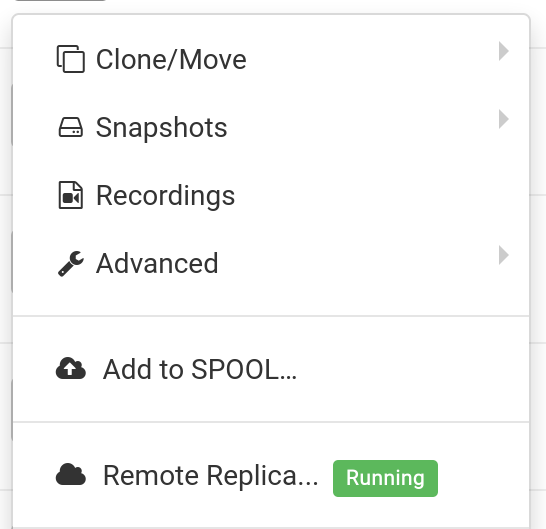

Restoring a Remote Replica
Should you ever find yourself unable to access your FreshStart Desktop, you can opt to restore the Remote Replica you previously configured.


After moving to the Remote Replica, you cannot return to the original Desktop. But that's fine because it’s an identical copy.
Bear in mind that once you switch to your Remote Replica Desktop, the replication process stops. If you want to create a new replica, you’ll have to go through the initial setup steps again.


Scenario two: Using a Replica for FreshStart in a different geographic region to cut down on connection latency
Remote Replica truly shines when you need a copy of your Fresh Start machine located closer to your actual geographic location—especially while developing course content. For instance, imagine a trainer based in Germany who is delivering a course in South Africa. This scenario crops up often with DaDesktop, which is designed to handle such situations with ease.
In this case, you wouldn’t want your course creation desktop to reside on a South African server because the latency would be too great. So you set up a Remote Replica of your desktop in Europe, cutting down on lag. The replica stays synced with all your edits.
Once you’ve finished your work on the Fresh Start Desktop, you can restore the Remote Replica to the trainer machine in South Africa, enabling quick copying to both the trainer and participants.