
Oracle Server Troubleshooting Guide
When you prepare applications on a Fresh Start machine using DaDesktop (DD), most work perfectly. However, a couple of apps may not behave as expected after cloning, requiring a few additional steps to get them running smoothly again.
System Details
-
Oracle Database 19c (other versions will probably behave the same way)
- Set up on a Windows 10 template
Fresh Start Fix Notes
-
Bear in mind this is a general guide for fixing the app in a Fresh Start environment. The steps might vary based on your specific setup.
-
In short, the fix involves using localhost (127.0.0.1) instead of the original hostname, since after cloning, the machine's hostname changes and the old one becomes meaningless. There may also be extra database Listeners that throw the configuration off; removing them as shown below sorts things out.
Fix process
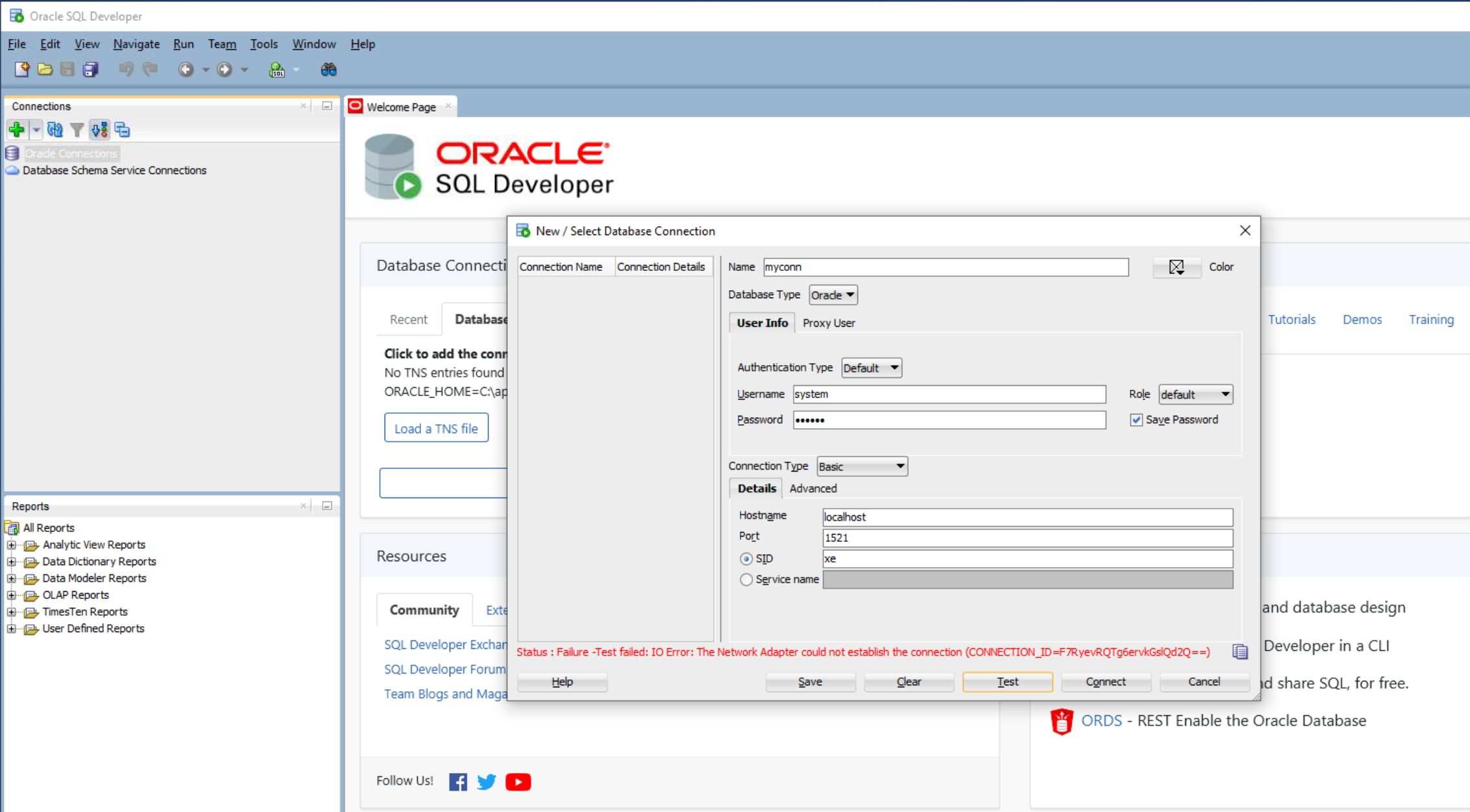
1. Here's what a failed database connection looks like when using Oracle SQL Developer.
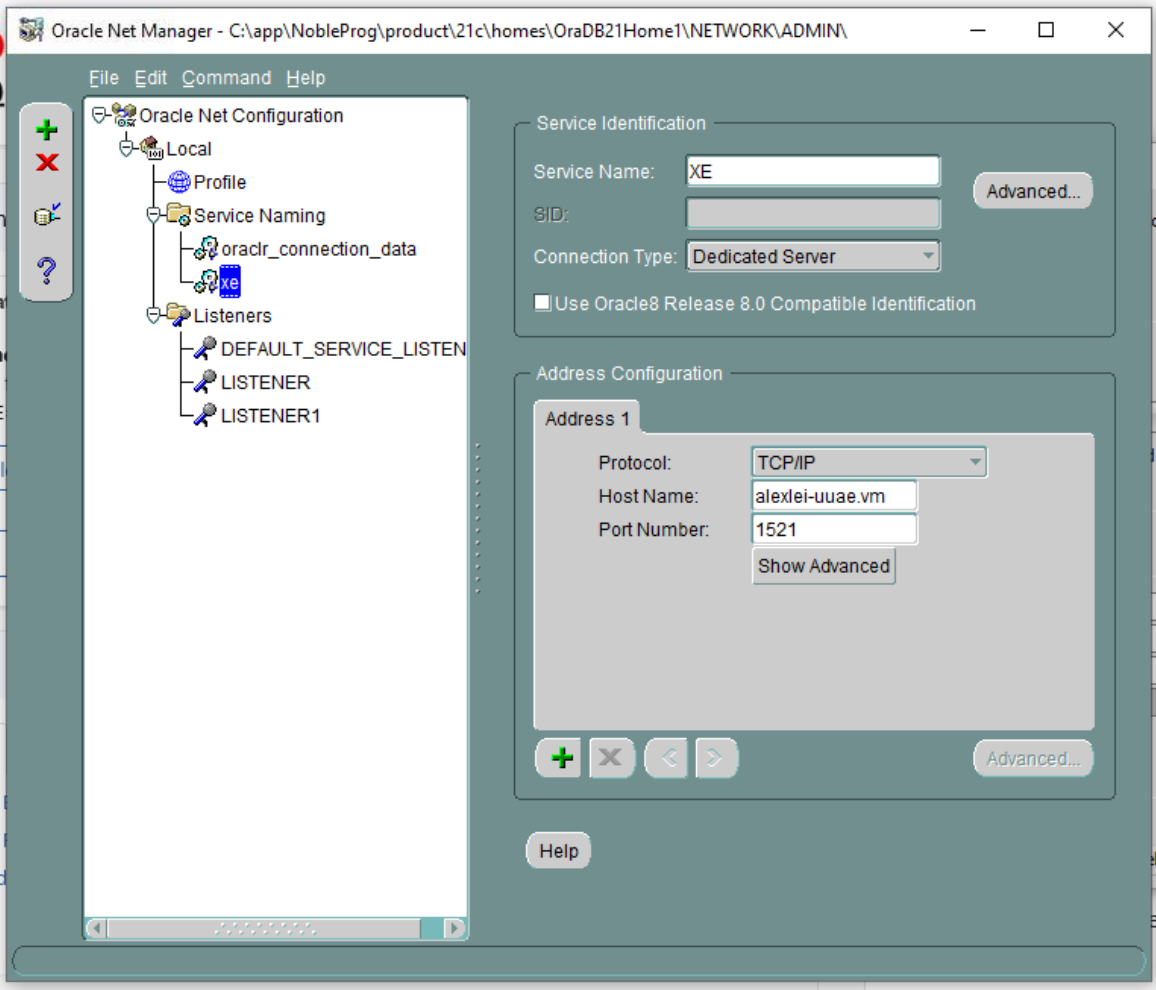
2. Open the Oracle Net Manager application.
The XE service details are displayed, including the original host info (here it's alexei-uuae.vm).
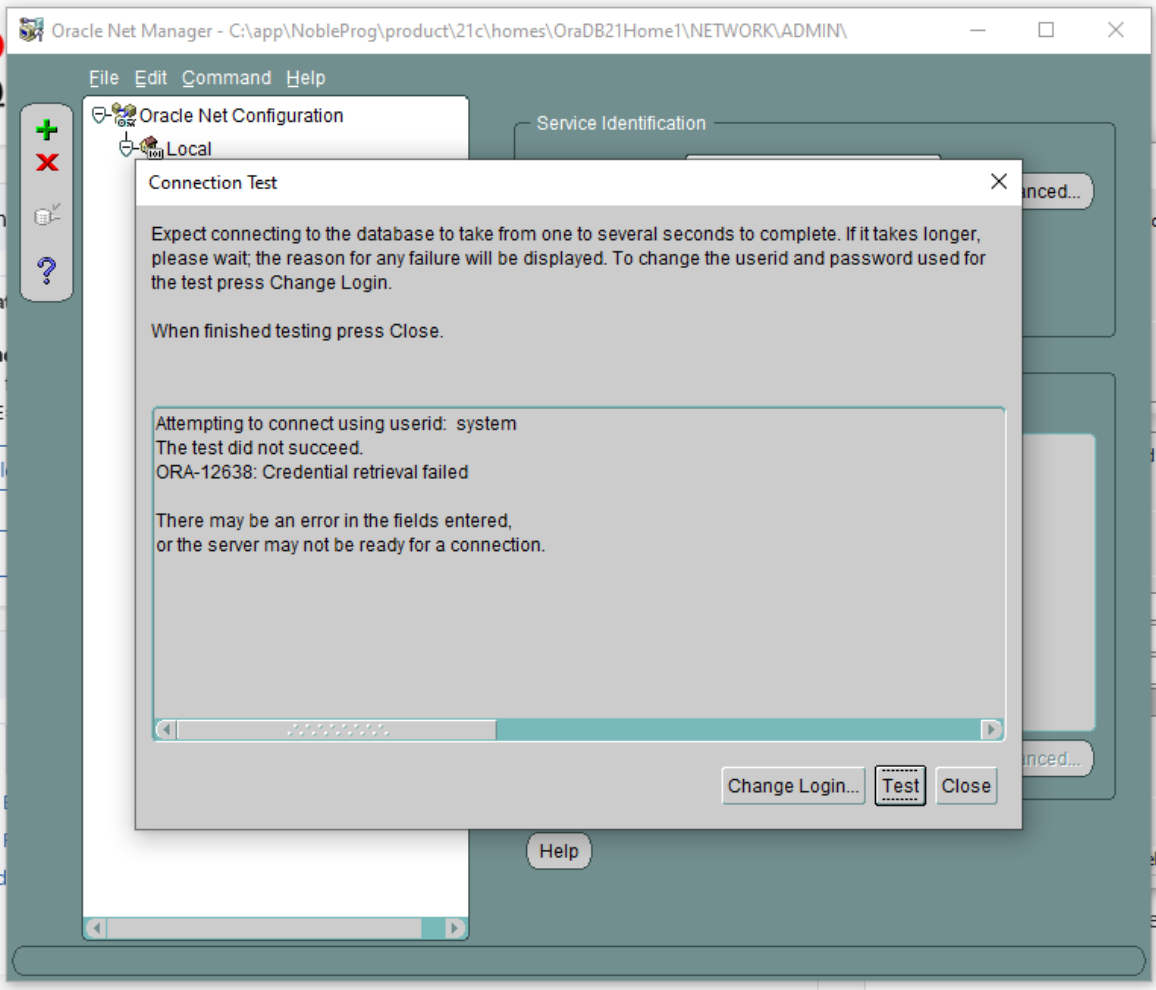
3. The connection test fails when entering the username system and the password.
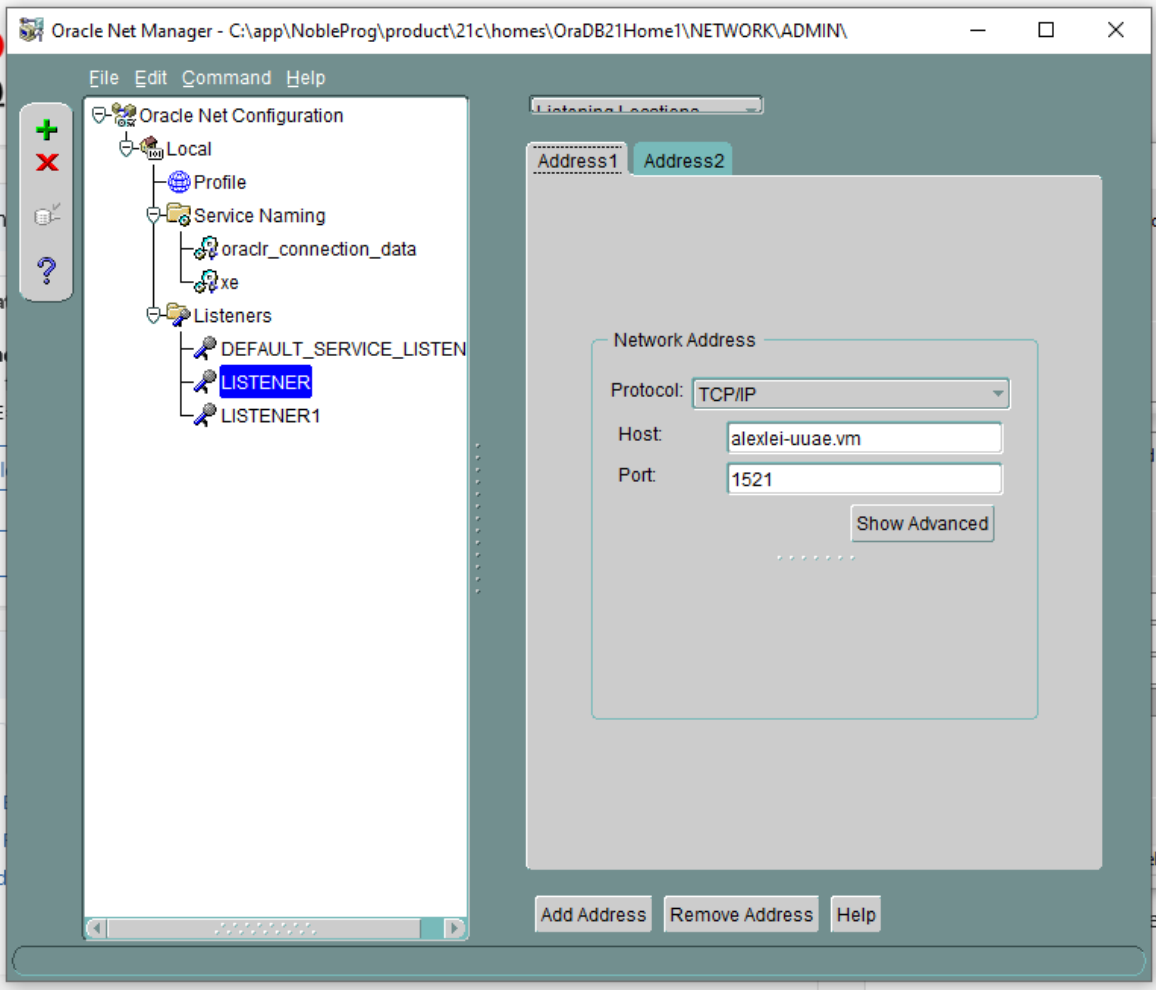
4. In Oracle Net Manager under Listening Locations, the Listener shows the old hostname 'alexei-uue.vm', which we'll update.
Host details that shows original hostname 'alexei-uue.vm' this will be changed.
5. LISTENER1 has no databases configured. Look for any listeners without associated database services and delete them. Check for any Listeners that may not have database services configured for them. If so, delete that Listener.
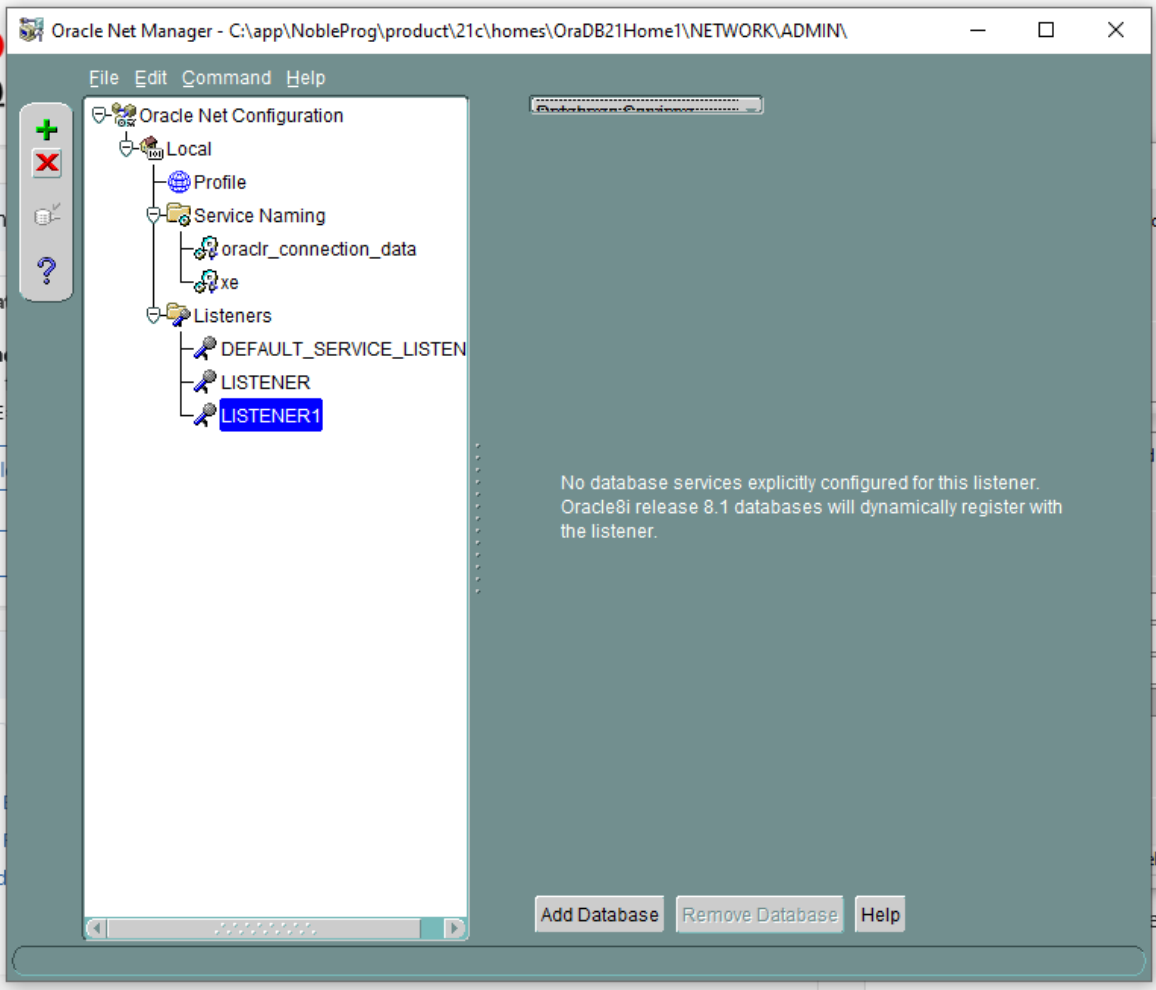
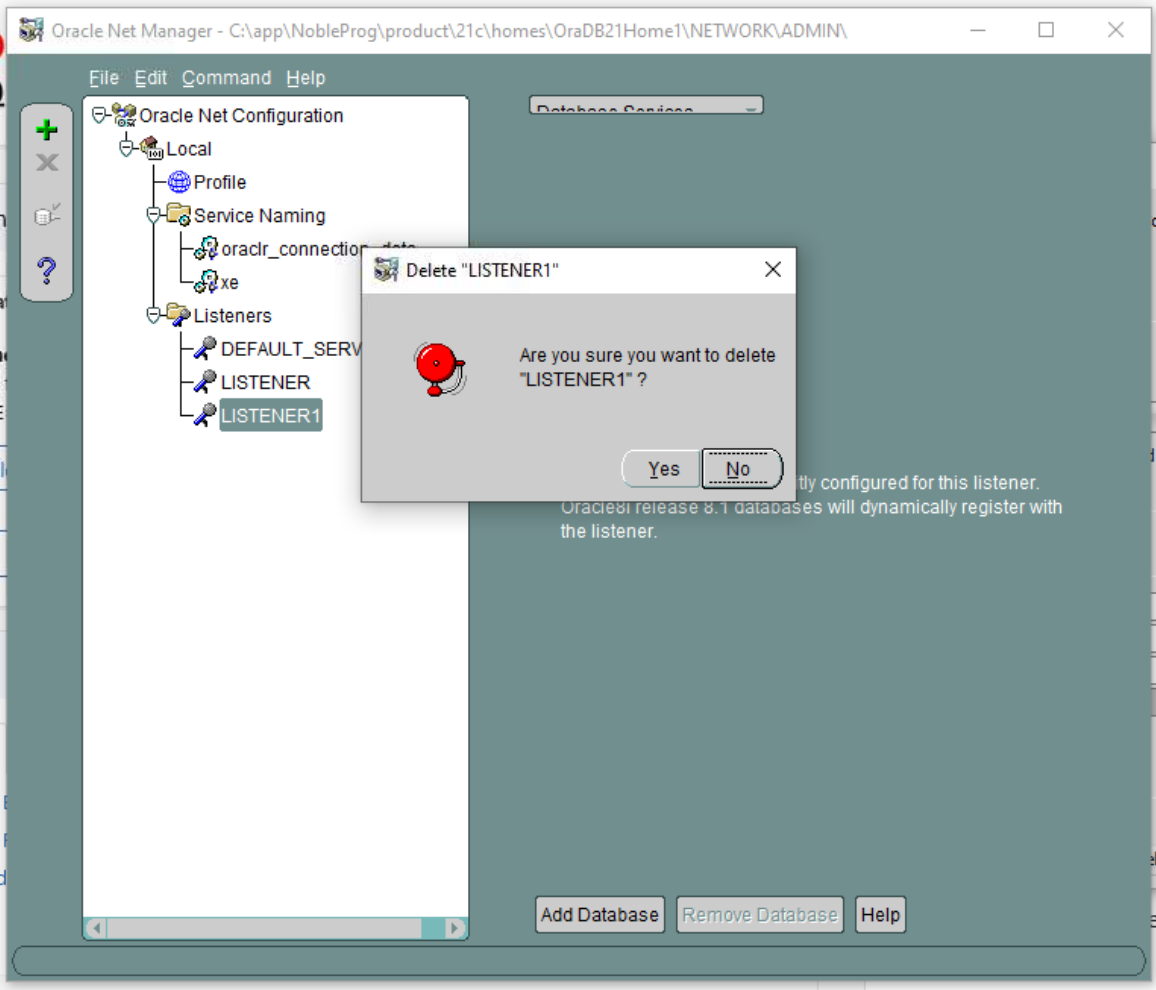
6. So go ahead and delete LISTENER1, confirming when prompted. Keep in mind this is just what happened in our setup; your situation might differ, but this serves as a useful example.
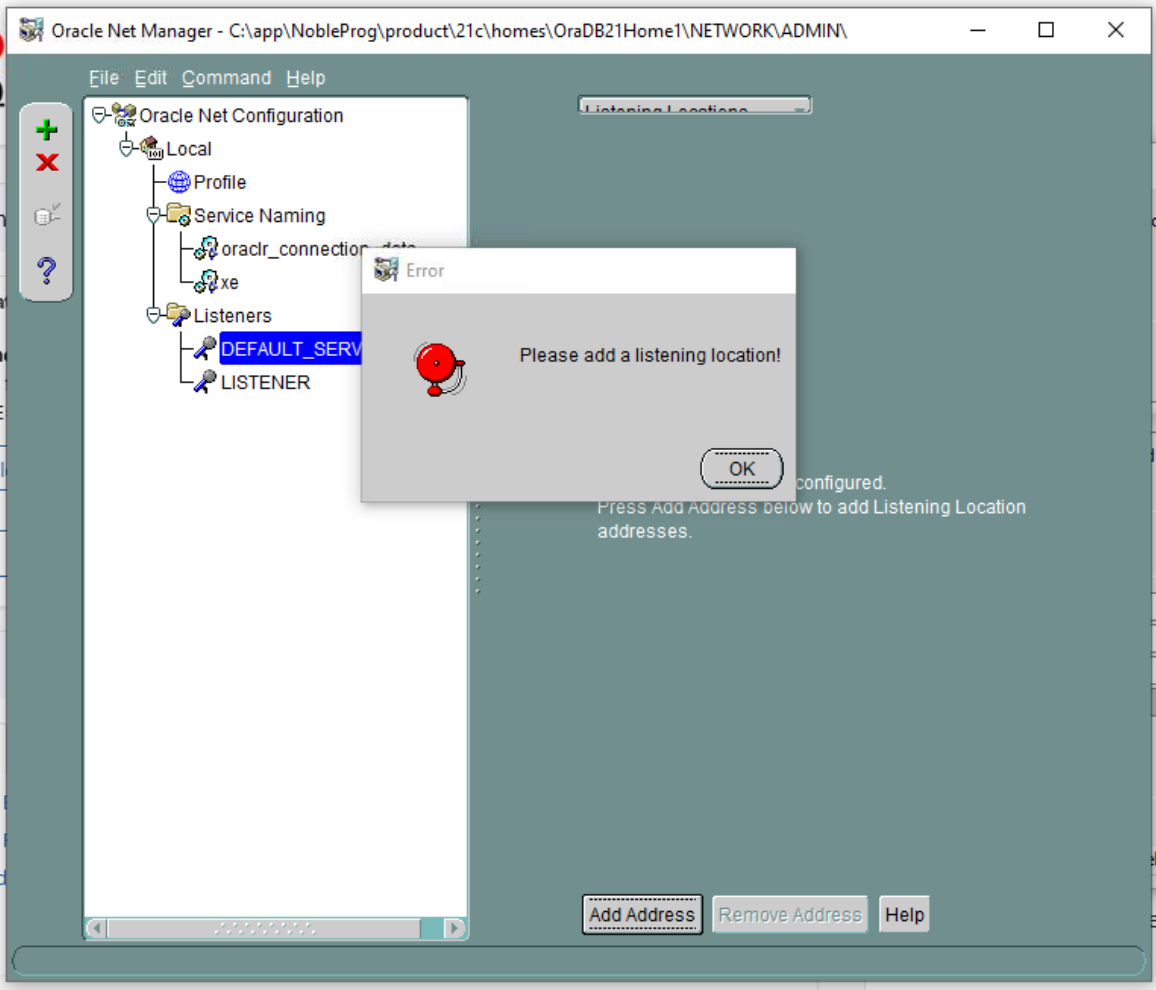
7. DEFAULT SERVER LISTENER - Now examine each listener in the DEFAULT SERVER LISTENER list. In this example, there's no listening location available.
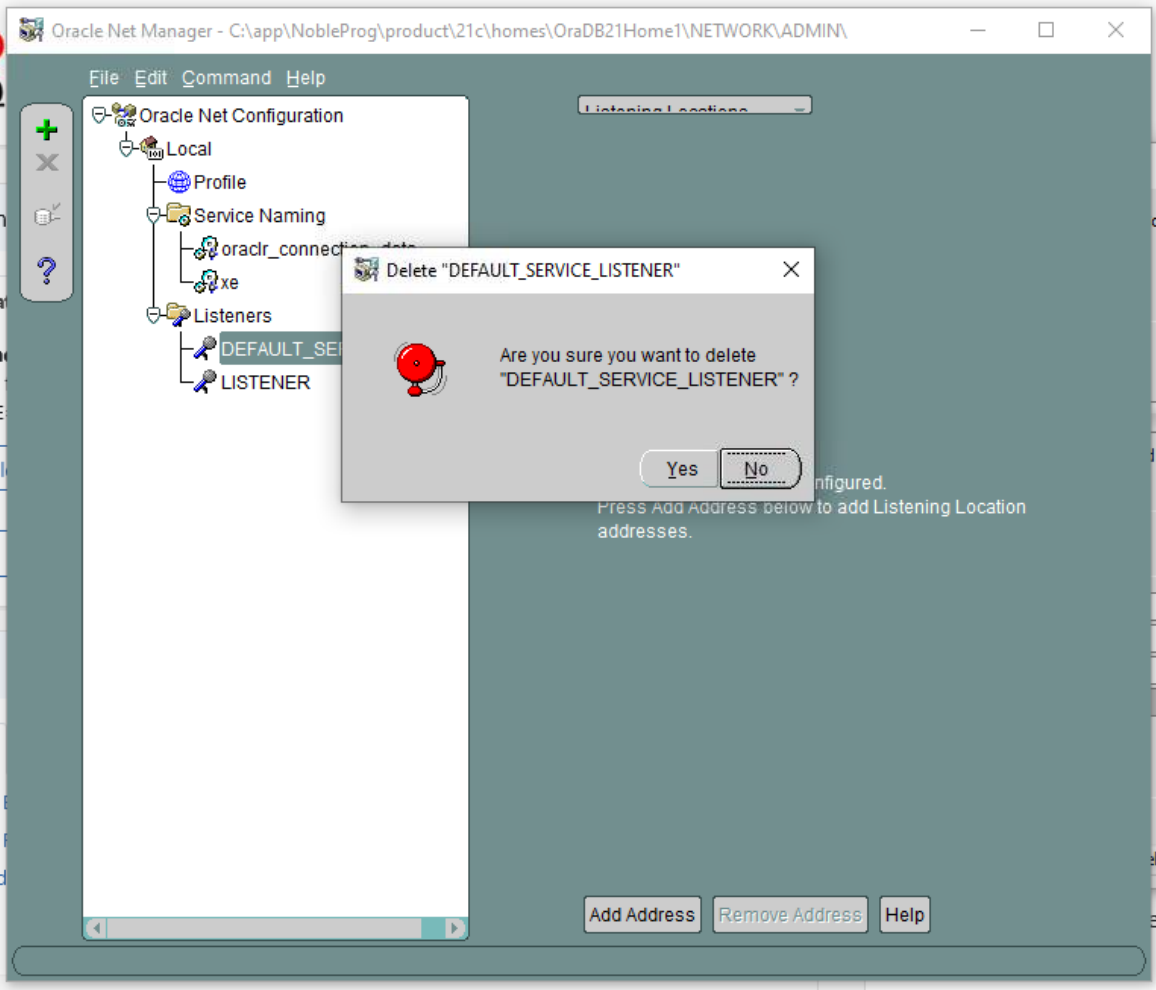
8. So remove the DEFAULT SERVER LISTENER.
9. With only the standard LISTENER remaining, you'll see the current VM hostname, which must be updated because it changes after cloning.
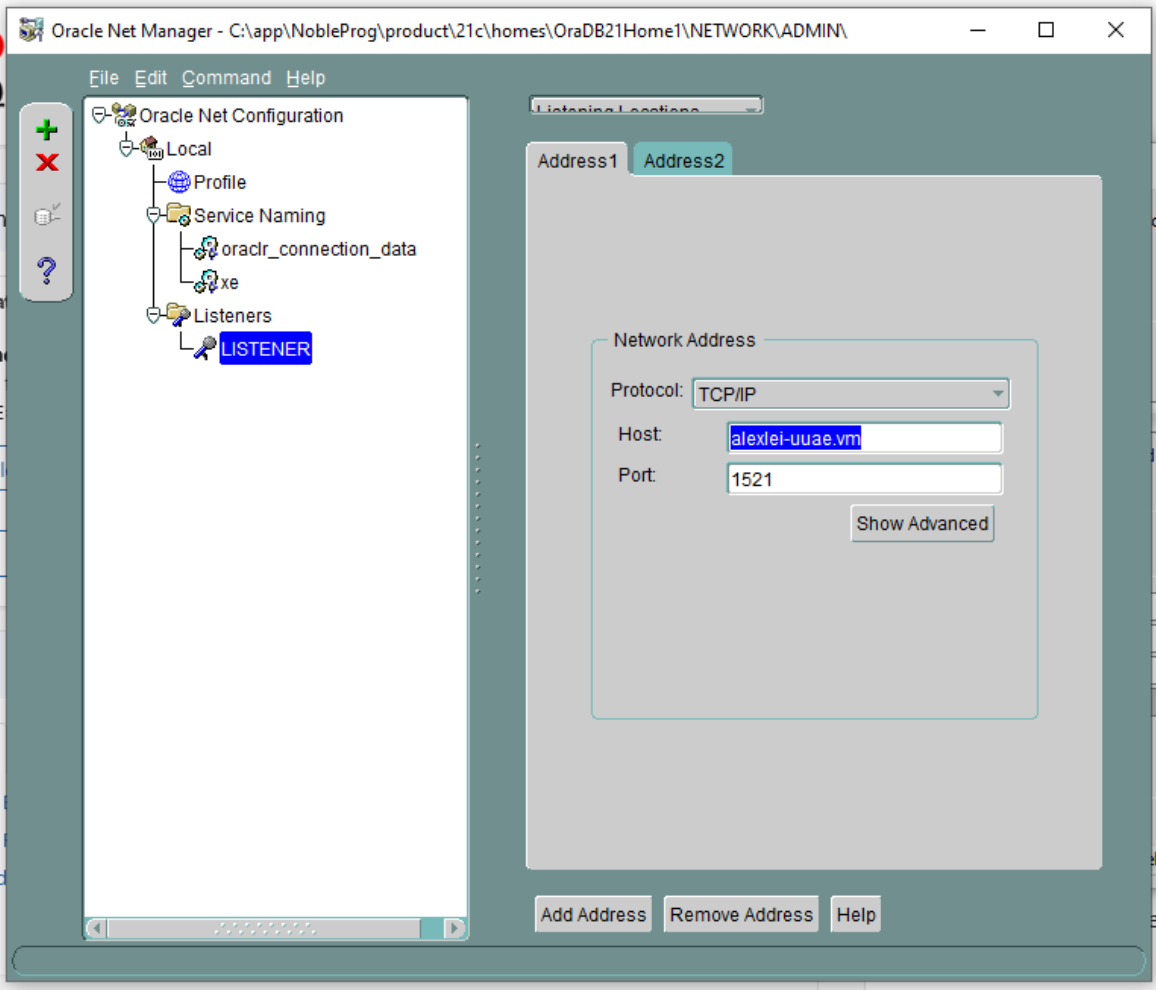
10. Switch the host from the existing name (e.g., 'alexi.uuae.vm') to 127.0.0.1, without altering the port.
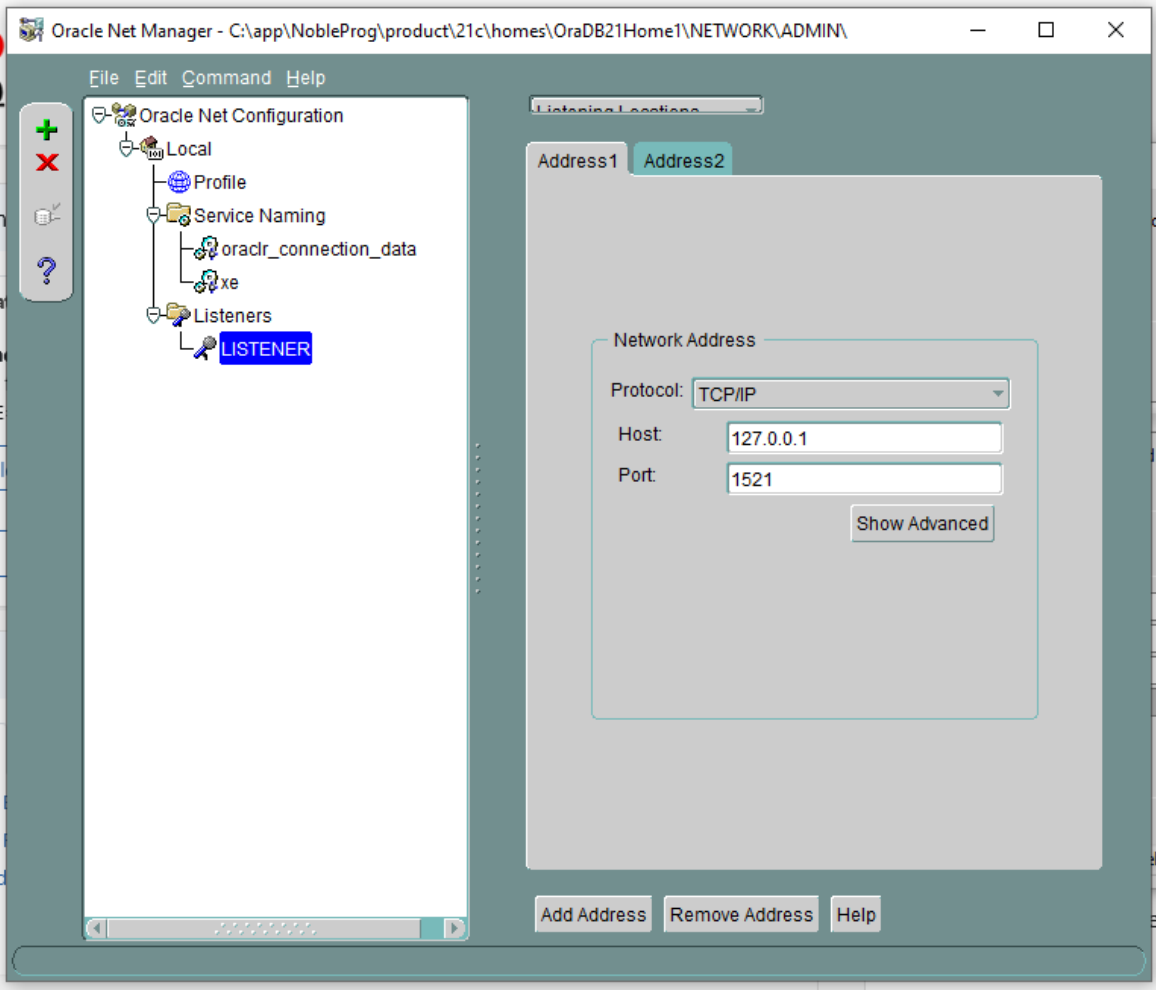
Now configure the existing database.
11. Update the SID to XE and the Global Database Name to xe.local.
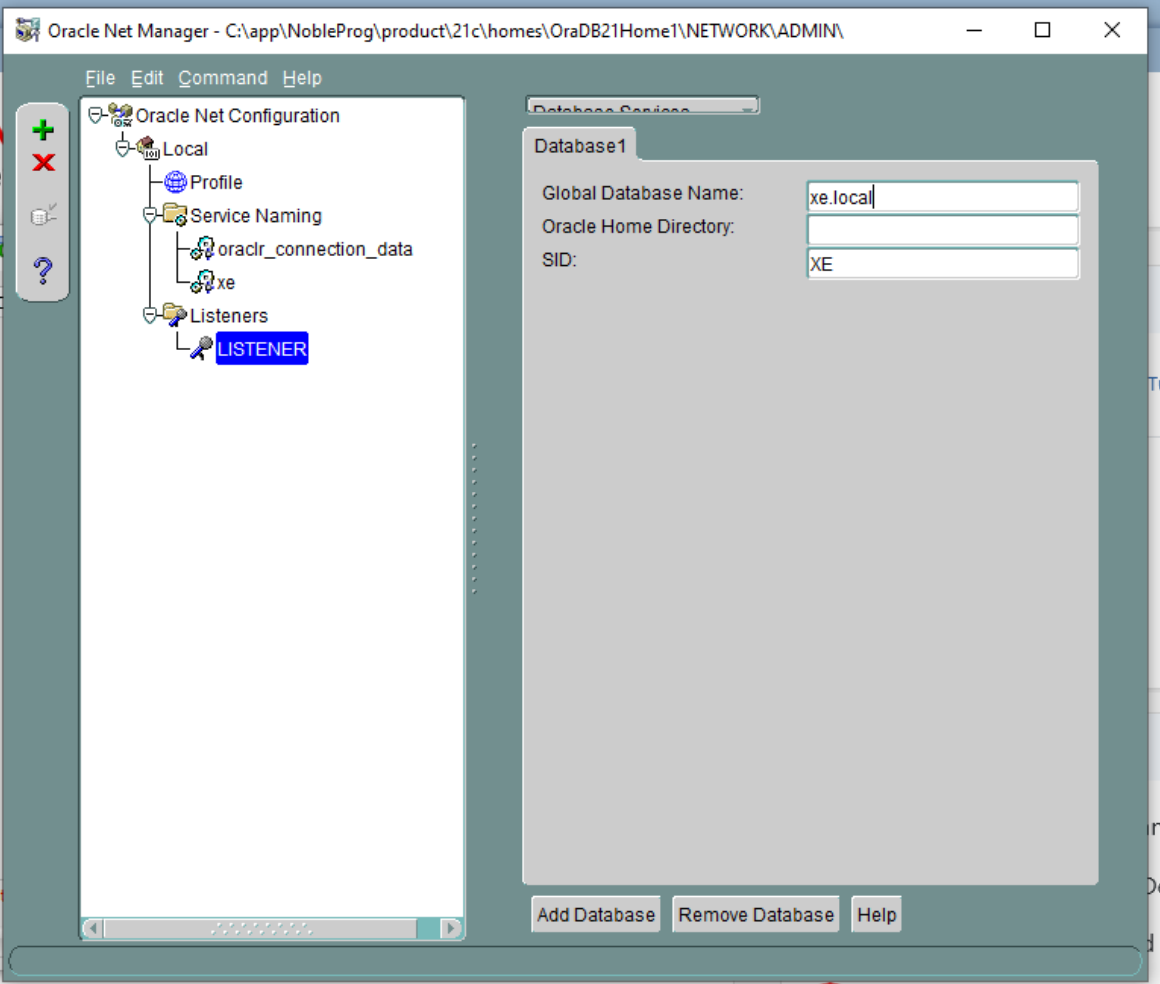
12. Save your network configuration and close the application.
13. Open a Command Prompt to restart the listener service.
Run ‘lsnrctl status’, then ‘lsnrctl stop’
Then ‘lsnrctl start’
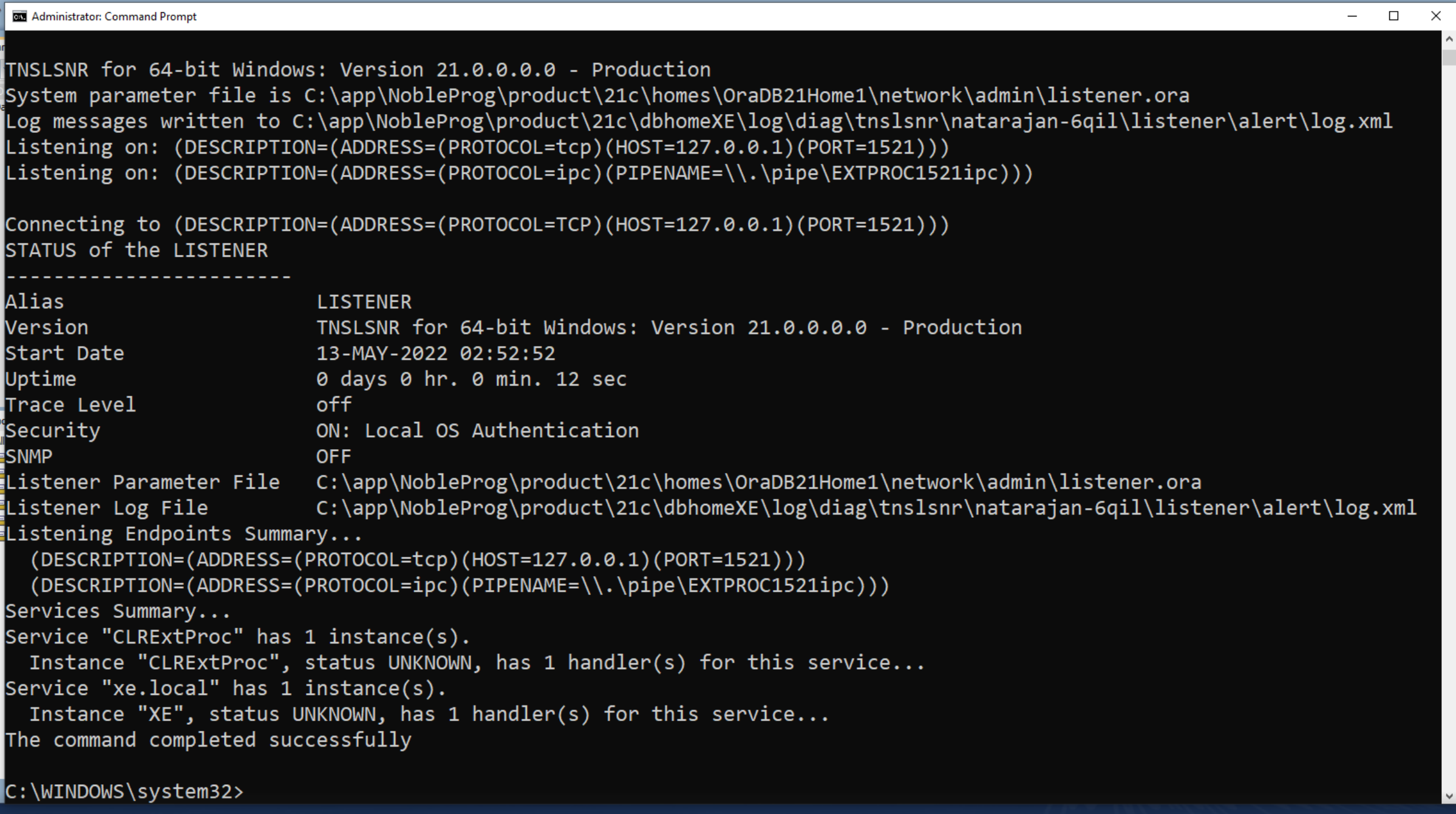
Open Oracle Net Manager once more.
14. Delete alexei-vm from the Service Naming > xe section.
15. Set the host to 127.0.0.1.
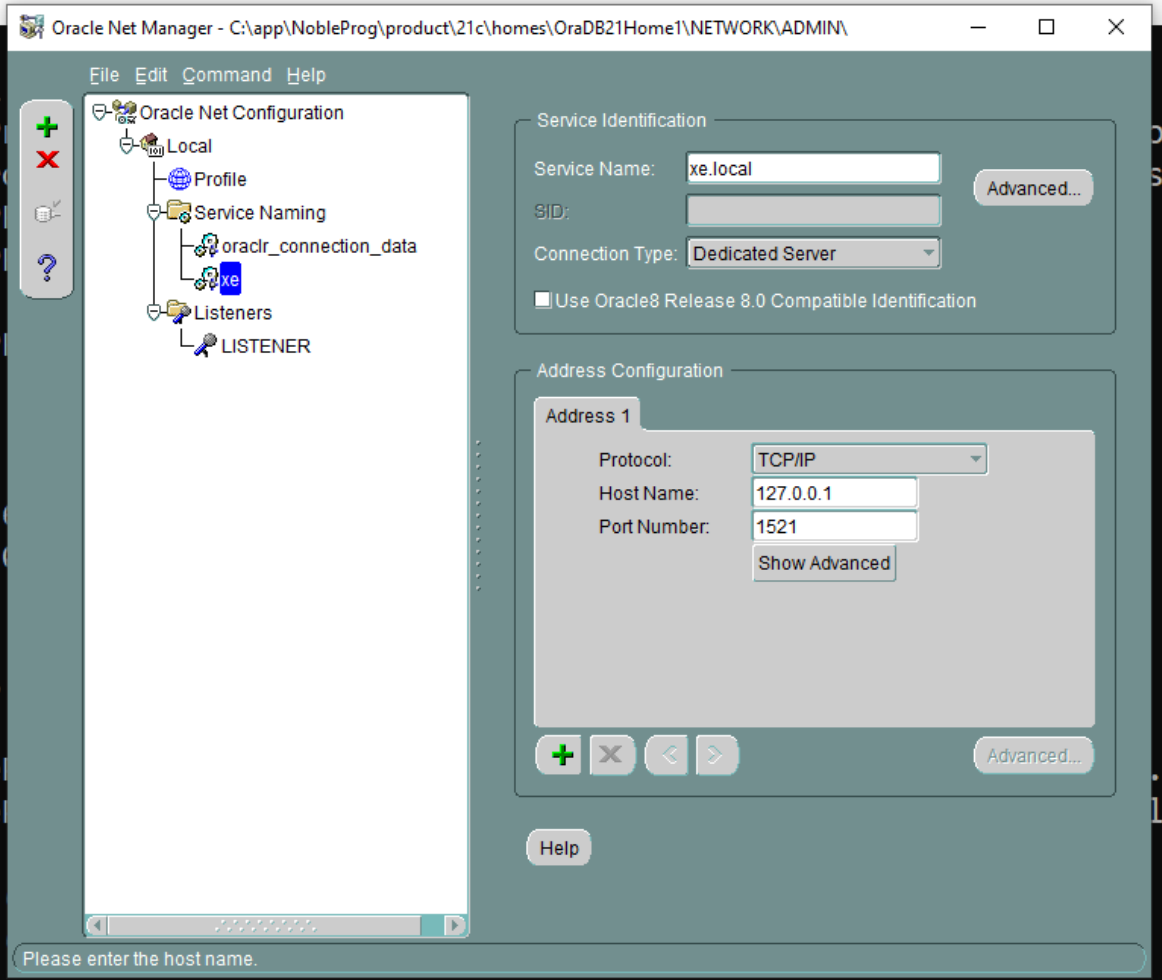
16. Save the network connection.
17. Test the connection by clicking the small button shown in the image below to launch the Connection Test.
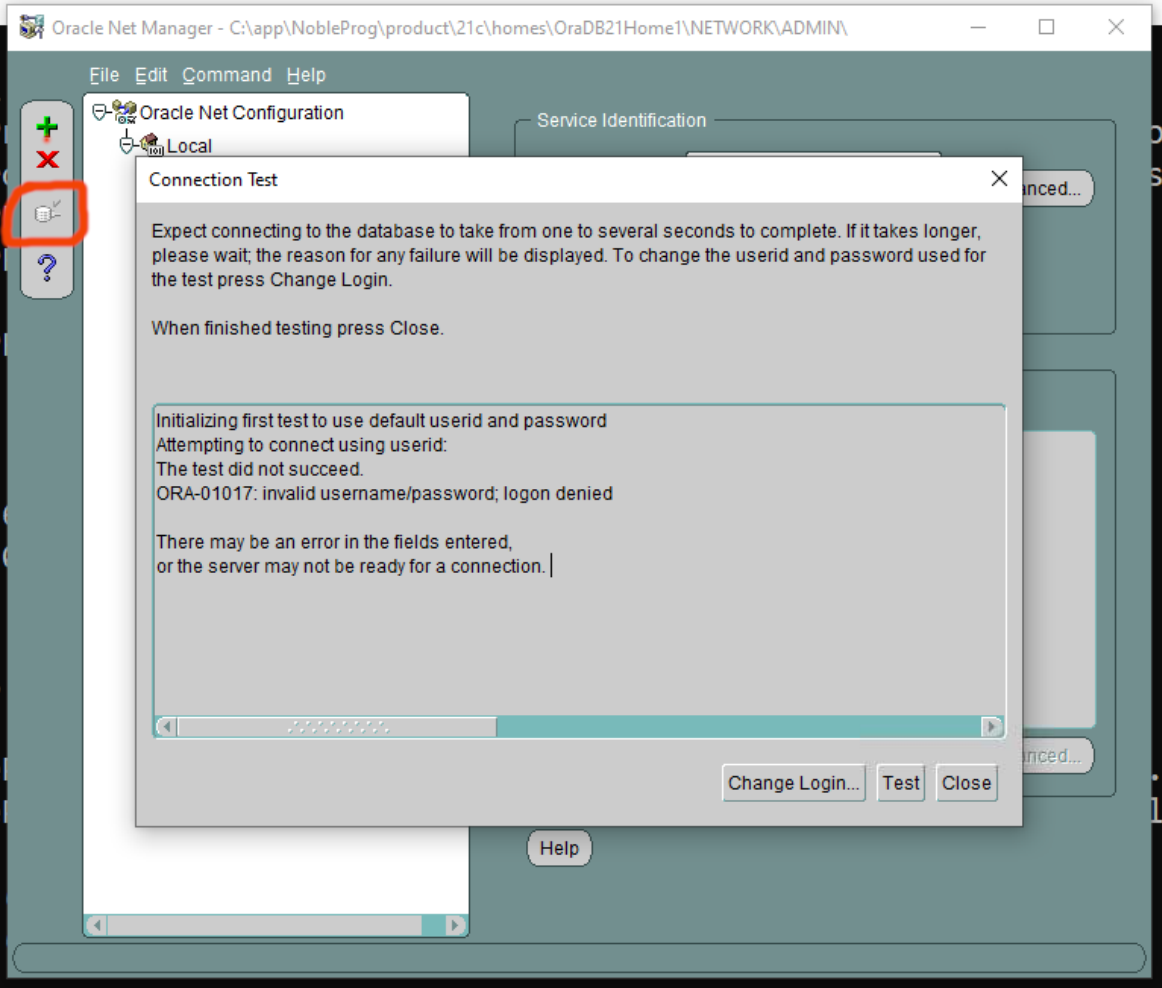
18. Update the login credentials by entering the username ‘system’ and your password.
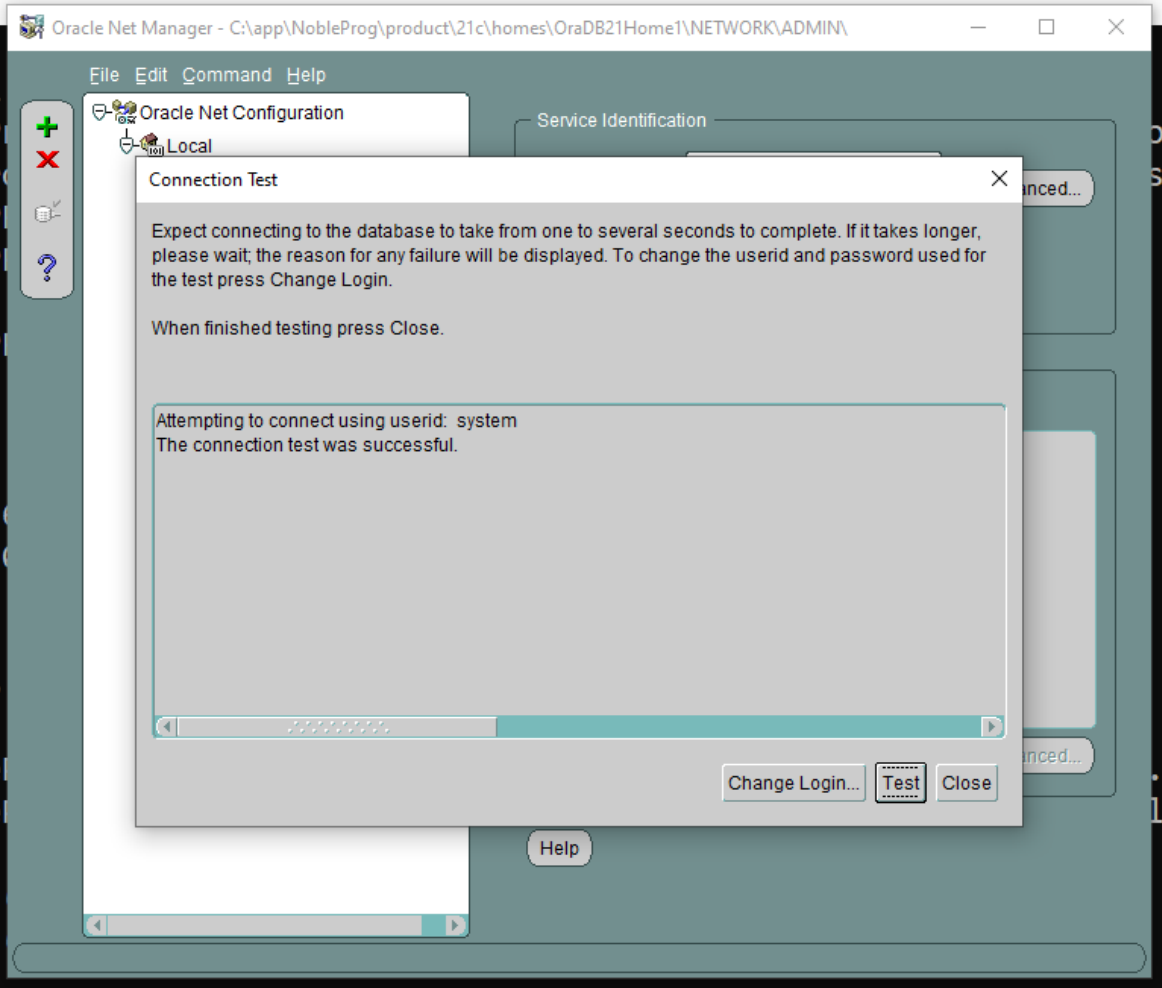
Save the network connection again if needed.
19. Return to the main Oracle SQL Developer window and run the connection test a second time.
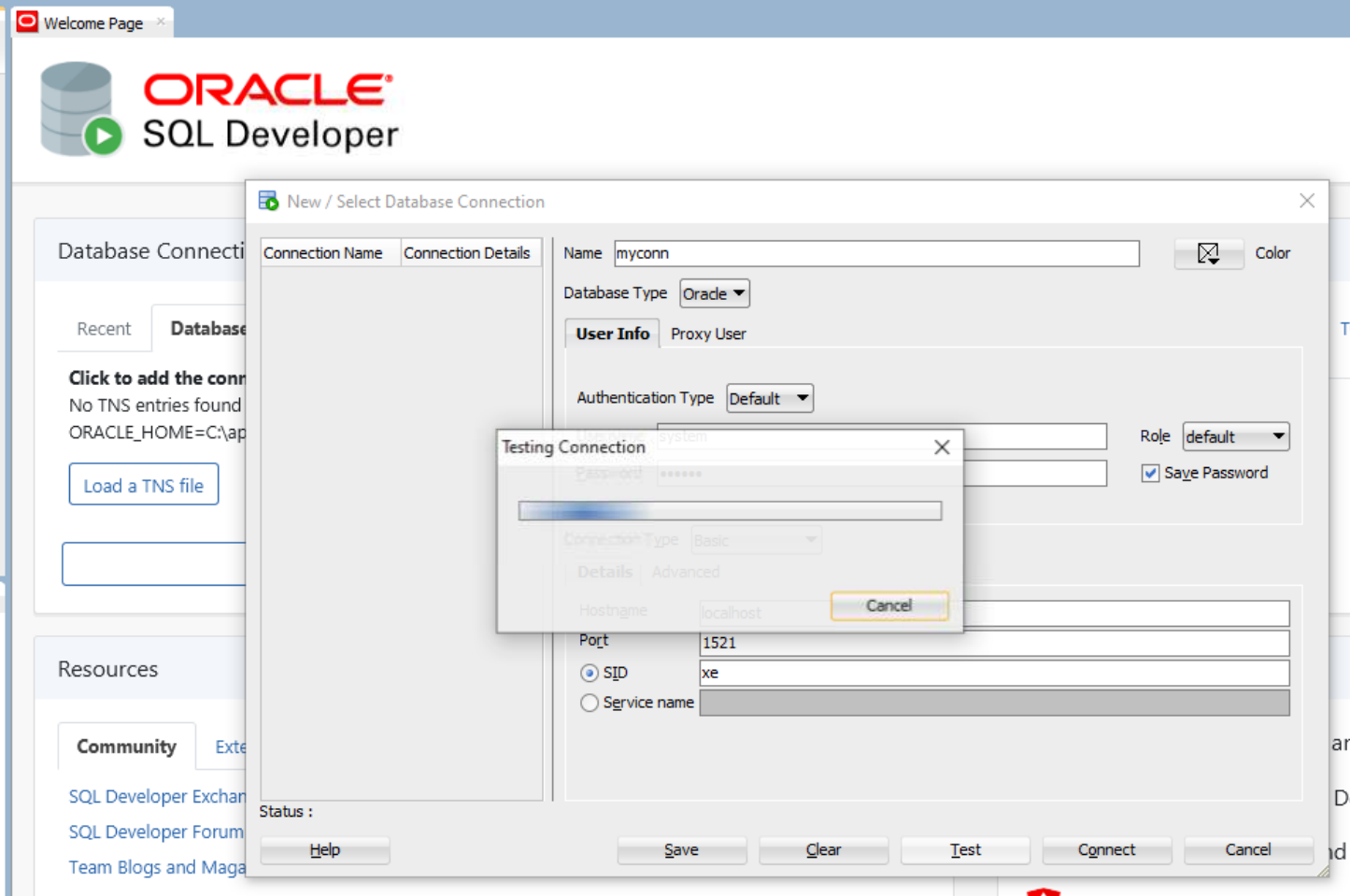
20. If the connection succeeds, navigate to the Connections panel on the left, expand Oracle Connections, and check that the database tables appear correctly.
21. Proceed with any remaining Fresh Start configuration steps, then clone the Fresh Start machines for the Trainer and Participants.
The Oracle Database server should now work properly on the Trainer and Participant machines.
If you still encounter problems, reach out to DaDesktop Support through the chat app – we're here to assist.